How to Install MonkeyMom on Windows, Mac, Android, iPhone and iPad
 Li Laiqun
About the author: Tooling engineer, formerly at Qualcomm and MediaTek. Builds MonkeyMom, an AI userscript factory for desktop and mobile managers.
Step-by-step MonkeyMom setup for four kinds of device: Edge or Chrome + Violentmonkey on Windows and Mac (or Safari + Stay for Safari on Mac), Edge + Violentmonkey on Android, and Edge + Stay for Mobile or Safari + Stay for Safari on iPhone and iPad.
MonkeyMom is itself a userscript, so on any device you first need a userscript manager, then tap the Install MonkeyMom button on this site. The managers available differ by device, so the guide below is split into four groups: Windows, Mac, Android, and iPhone / iPad. The device picker under the install button on the home page detects your device and links to the matching section here.
1. Windows: Edge or Chrome + Violentmonkey
1. Install the Violentmonkey extension
Open Edge or Chrome and go to the Violentmonkey website; it links to the right extension store for your browser. After installing, the Violentmonkey icon appears in the toolbar. Make sure it is enabled.
One more required step: open the extensions page (type edge://extensions in Edge or chrome://extensions in Chrome), open Violentmonkey's Details, and turn on Allow user scripts. Without it, Violentmonkey cannot actually run any script.
2. Install MonkeyMom
Return to this site and tap Install MonkeyMom. Violentmonkey intercepts the .user.js link and opens an install confirmation page; tap Confirm installation. If you see a full page of JavaScript source instead, Violentmonkey is not installed or not enabled.
3. First run
Open any ordinary web page (browser settings pages and extension stores cannot run scripts). The MonkeyMom floating ball appears. Open the panel, go to Settings and enter your API endpoint, model and API key. You can now describe what you want in plain language.
2. Mac: Edge / Chrome + Violentmonkey, or Safari + Stay for Safari
Option A: Edge or Chrome + Violentmonkey
Exactly the same as on Windows: install the extension from the Violentmonkey website, open the extensions page (edge://extensions or chrome://extensions), tick Allow user scripts in Violentmonkey's Details, then return to this site, tap the install button and confirm on Violentmonkey's install page, and finally open the MonkeyMom panel on an ordinary web page and enter your API key. This is the recommended route; script behaviour matches the other platforms most closely.
Option B: Safari + Stay for Safari
If you would rather stay in Safari:
- Install Stay for Safari from the Mac App Store. The core userscript features are free.
- Open Safari Settings → Extensions, tick Stay, and allow it on All websites.
- Open this site in Safari and tap Install MonkeyMom; Stay shows a floating install button at the bottom-right — tap it to confirm. If it doesn't appear, open the Stay app, choose Install script → From link, and paste the install URL:
https://userscript.app/monkeymom/monkey-mom-en.user.js
- Check in Stay's Library that MonkeyMom is enabled, then open an ordinary web page and enter your API key in the floating-ball panel.
3. Android: Edge for Android + Violentmonkey
Edge for Android supports browser extensions, and Violentmonkey is already in its store. This is the least fiddly route on Android today.
1. Install the Edge browser
Install Microsoft Edge from Google Play or the Edge website.
2. Add Violentmonkey inside Edge
- Open Edge and tap the "☰" (three-line) menu at the bottom-right.
- Choose Extensions.
- Search for Violentmonkey and tap Get.
- Back in the extension list, make sure Violentmonkey is switched on.
- Open the "☰" menu again, choose Extensions → Manage extensions, find Violentmonkey, tap the "⋮" (three-dot) button on its right, and tick Allow user scripts in the menu that opens.
3. Install MonkeyMom
Return to this site and tap Install MonkeyMom, then tap Confirm installation on Violentmonkey's page. A page of source code instead of a confirmation means Violentmonkey is not set up yet.
4. First run
Open an ordinary web page; the MonkeyMom floating ball appears. Open the panel, go to Settings and enter your API endpoint, model and API key.
4. iPhone / iPad: Edge + Stay for Mobile, or Safari + Stay for Safari
Option A: Edge browser + Stay for Mobile
Edge for iOS also supports extensions, but Violentmonkey is not yet available in the Edge store on iOS (it is expected later). For now, install Stay for Mobile - Userscript Manager, the mobile-browser userscript manager from the Stay team. It is compatible with MonkeyMom.
- Search for "Microsoft Edge" in the App Store, or go through the Edge website.
- Open Edge, tap the "☰" (three-line) menu in the middle of the bottom toolbar, and choose Extensions.
- Search for Stay for Mobile - Userscript Manager, tap Get, and allow it to access websites when asked.
- Return to this site and tap Install MonkeyMom; confirm in the Stay for Mobile prompt. If no prompt appears, open the Stay for Mobile extension panel, choose Import from link, and paste the install URL:
https://userscript.app/monkeymom/monkey-mom-en.user.js
- Open an ordinary web page and enter your API endpoint, model and API key in the MonkeyMom panel's Settings.
Once Violentmonkey reaches the Edge iOS store, install it from there, tap the install button again, and tap Confirm installation on the Violentmonkey page that opens.
Option B: Safari + Stay for Safari
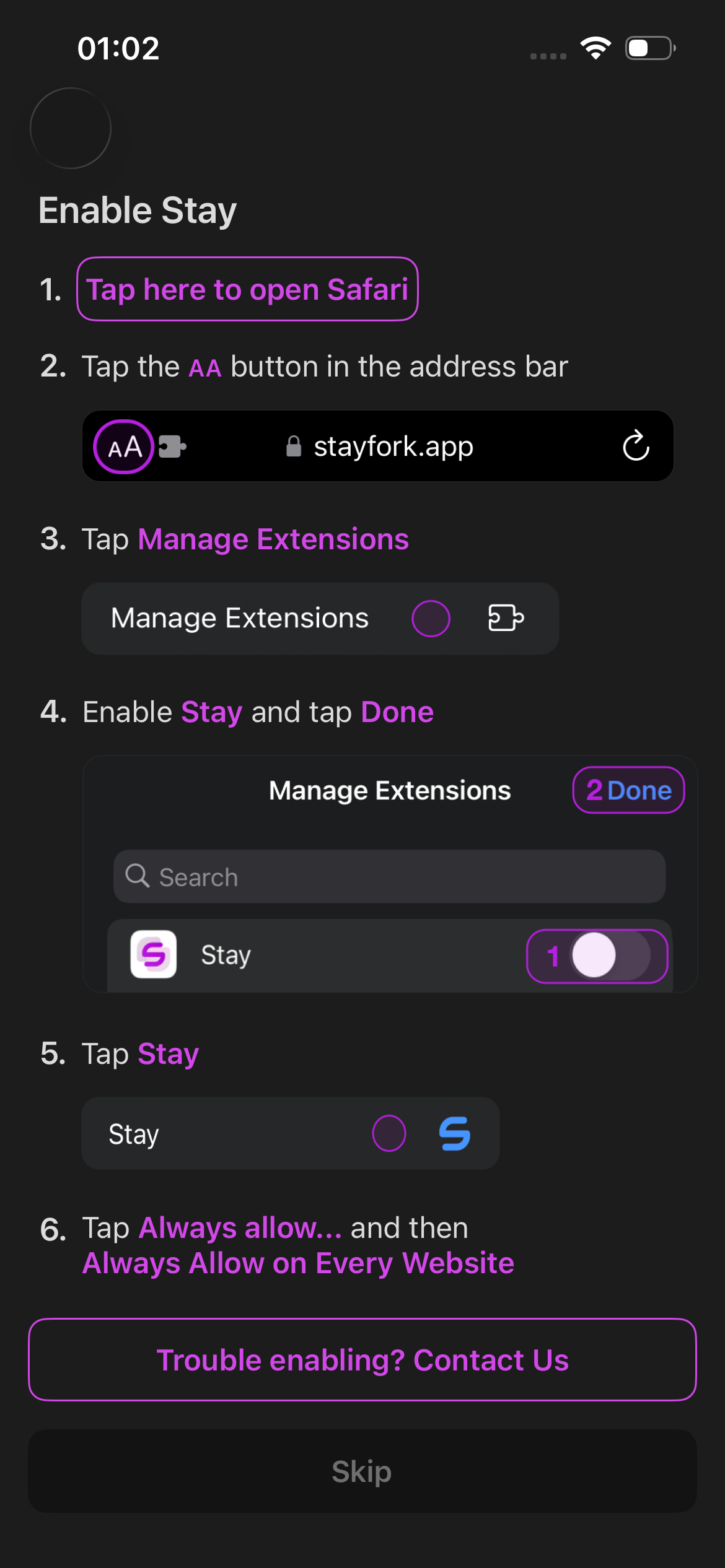
If you would rather keep the built-in Safari (screenshots are from an iPhone; the iPad layout is nearly identical). First, Stay's own in-app overview of the setup — it is a bit dated and a few entry points have moved, so follow the step-by-step screenshots below for the details:
-
Install Stay for Safari from the App Store. The core features are free; MonkeyMom does not need any paid tier.
-
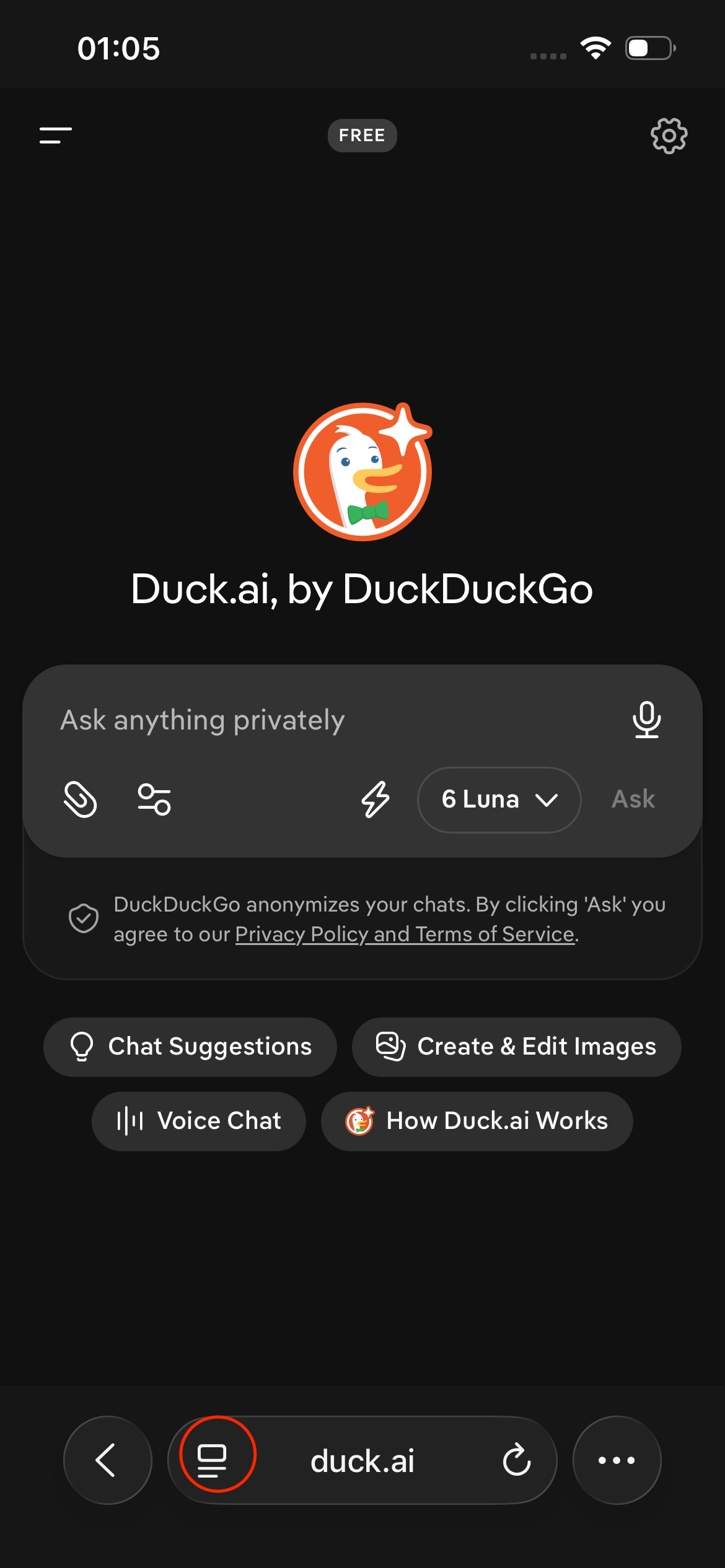
Open Safari and tap the page-settings button on the left of the address bar (a box with lines below it):
-
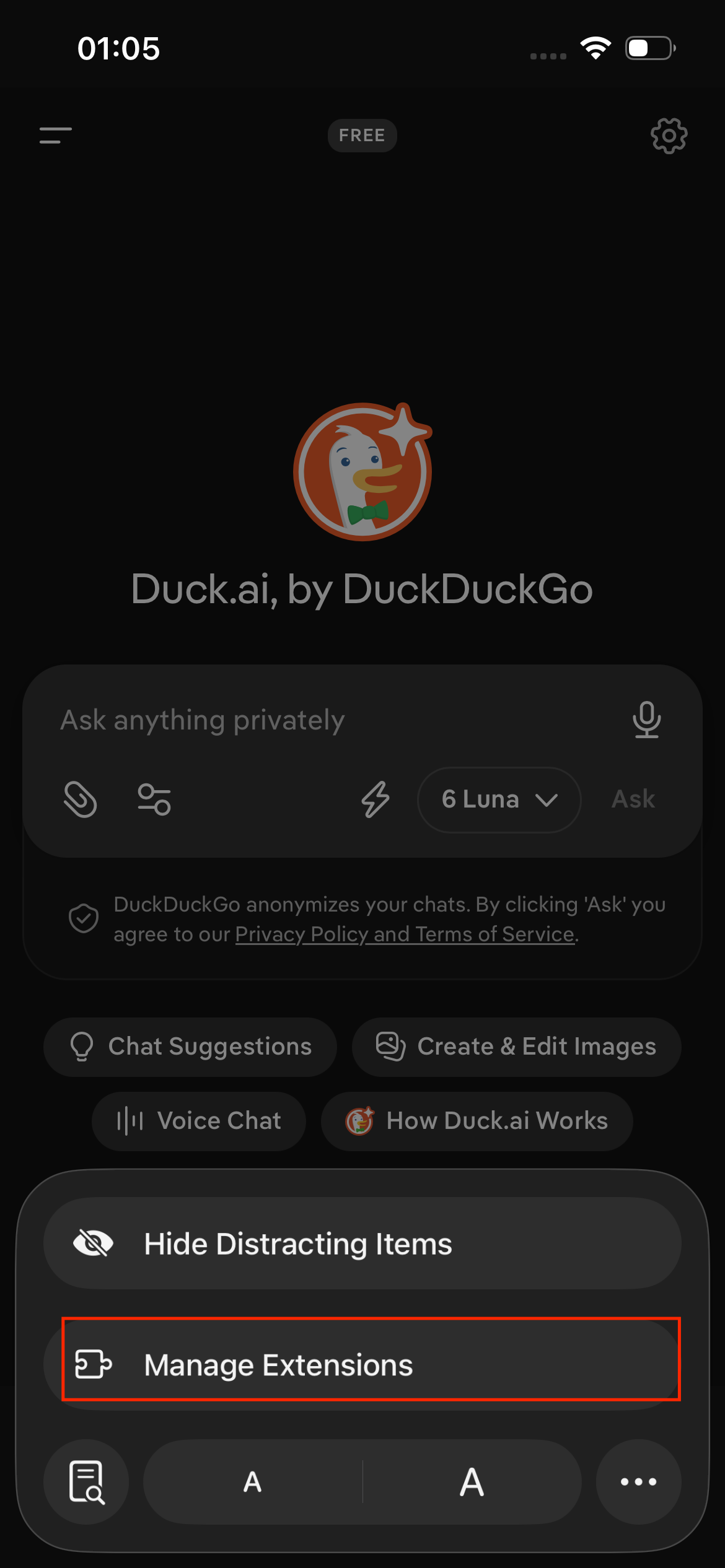
Tap Manage Extensions in the menu that opens:
-
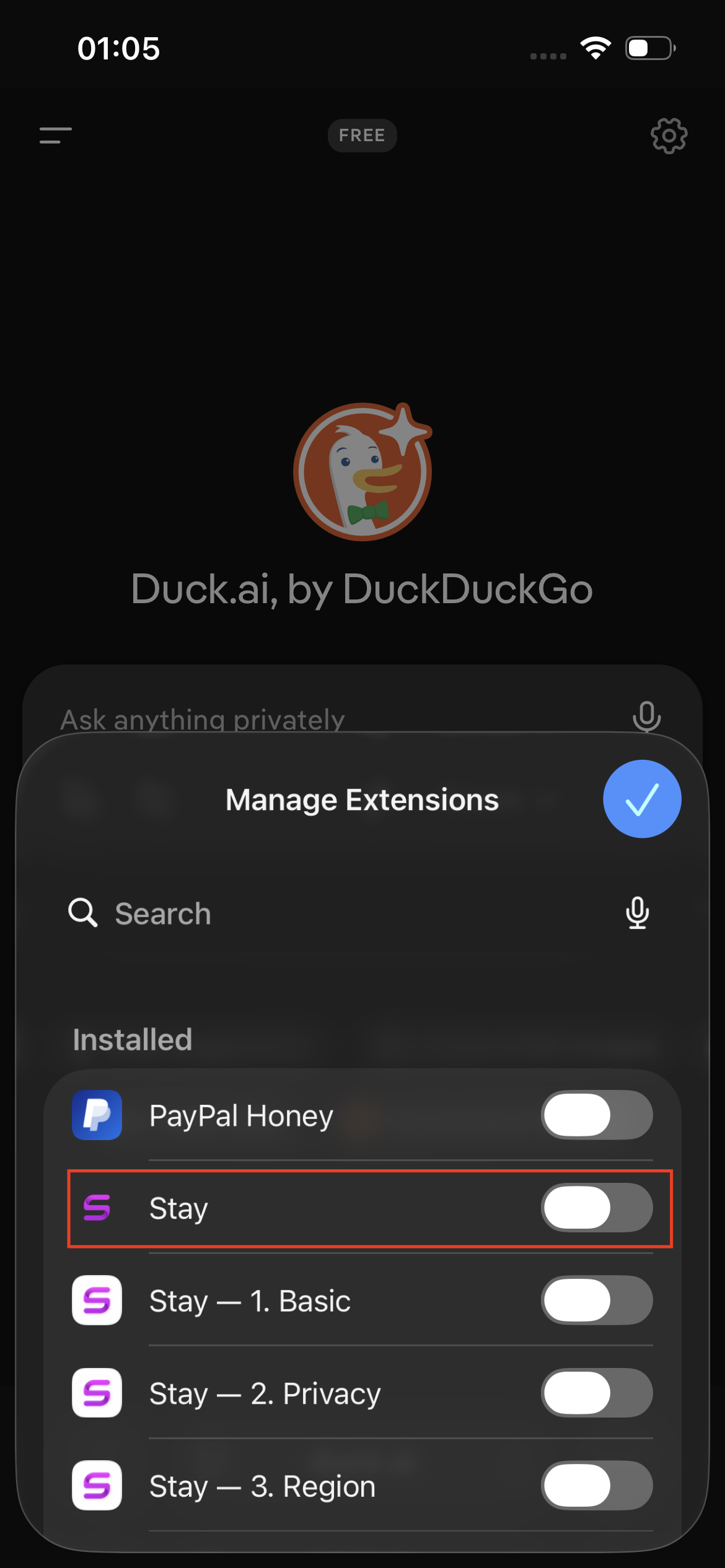
Find Stay in the extension list and turn on its switch; when the switch turns green, Stay is enabled:
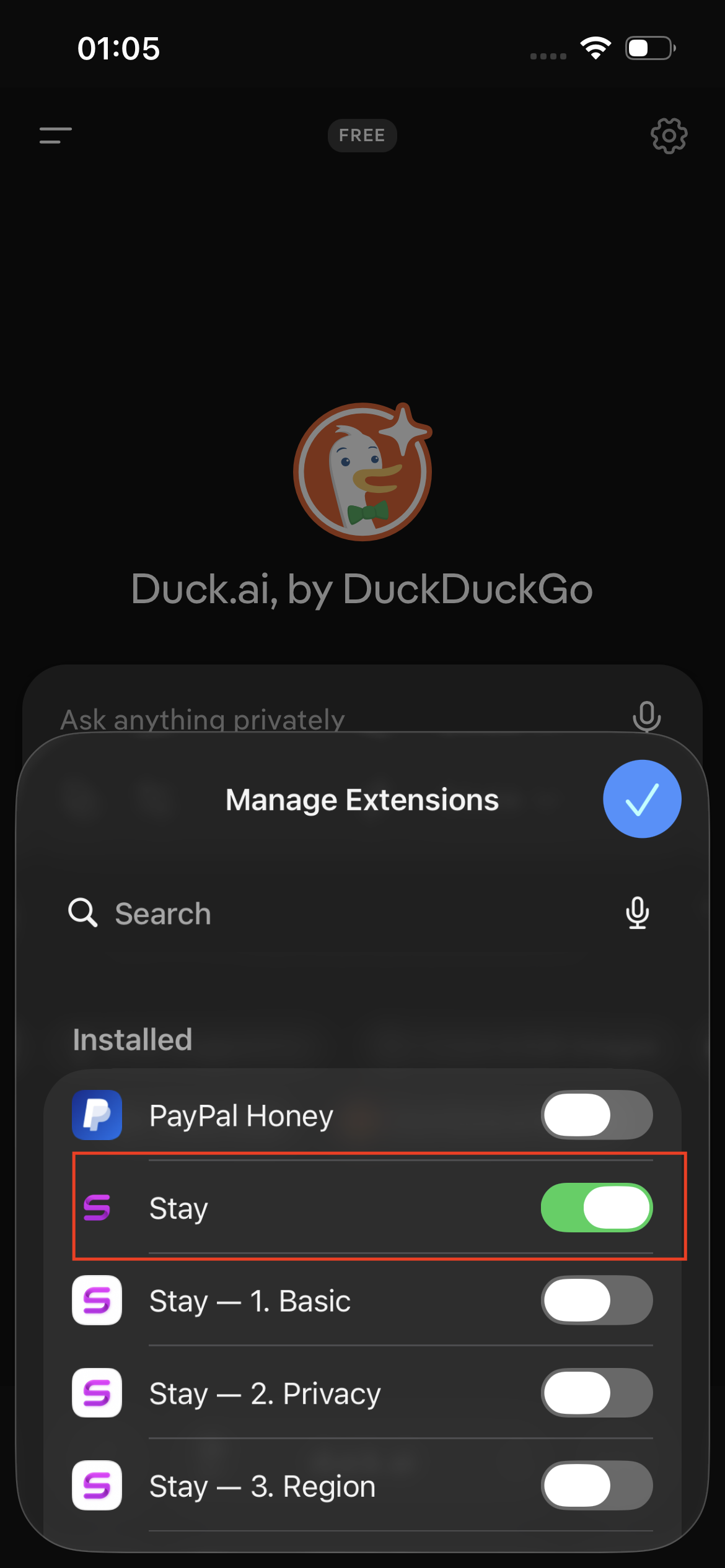
-
From now on, tap the same button on the left of the address bar and the menu shows a Stay entry; tap it to open the Stay panel:
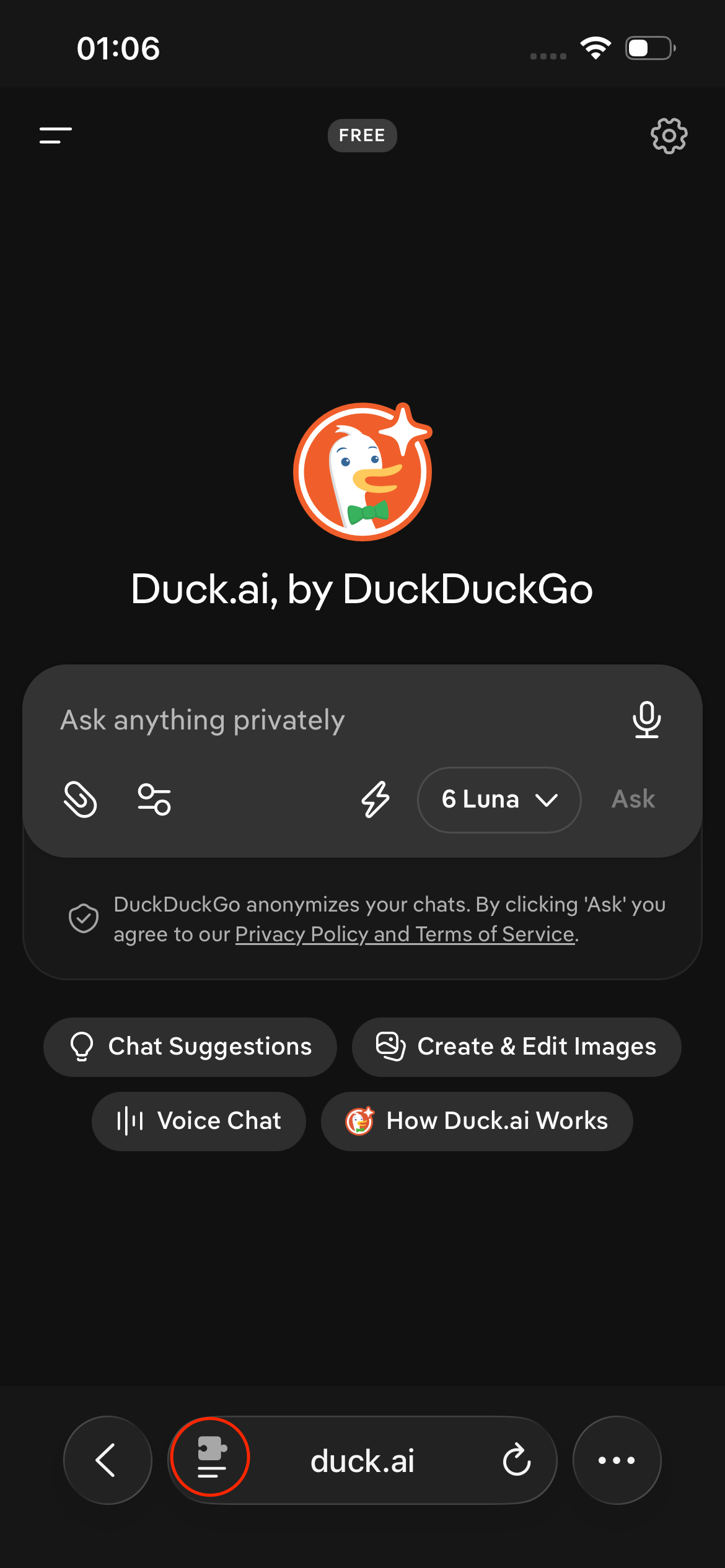
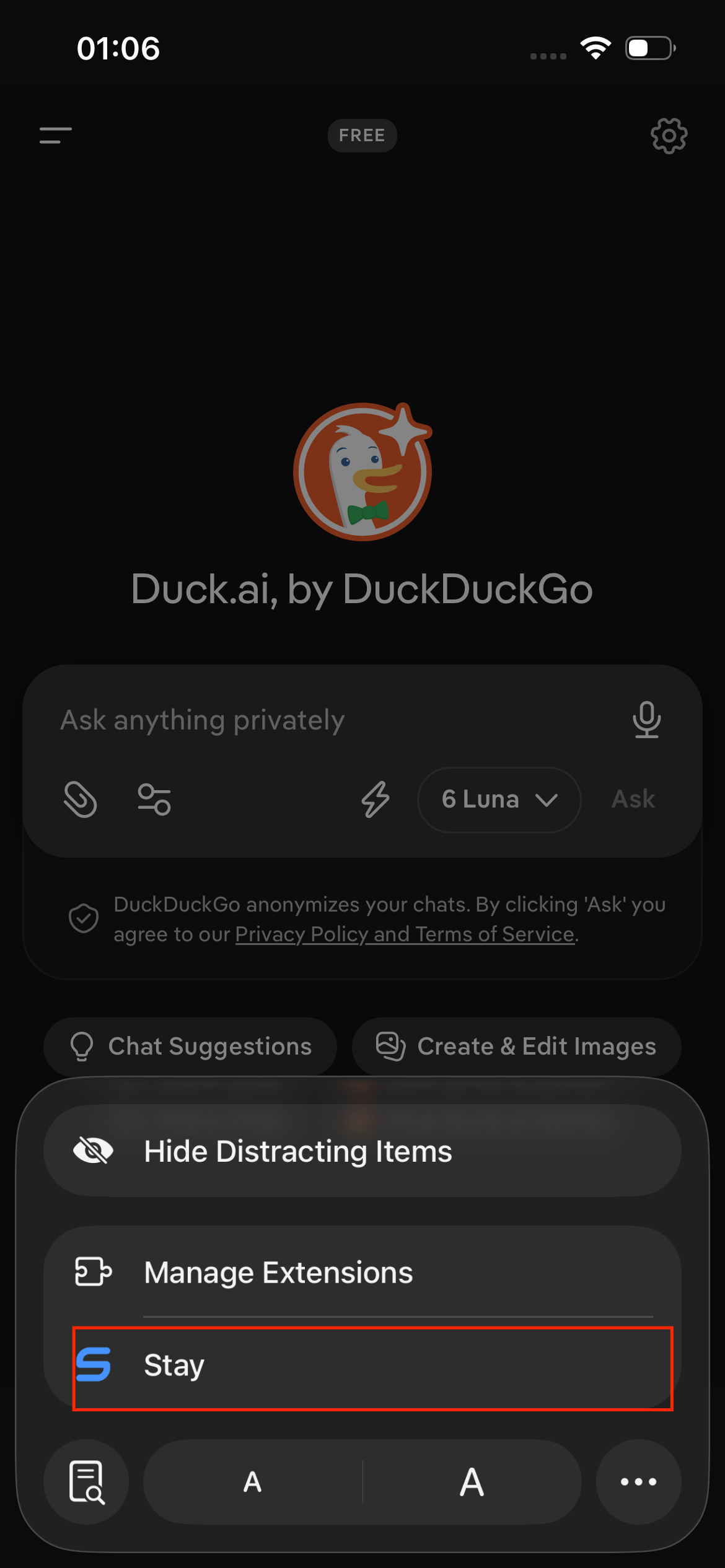
-
Open this site in Safari and tap Install MonkeyMom. The
.user.jsfile opens, and Stay shows a floating Install button at the bottom-right — tap it: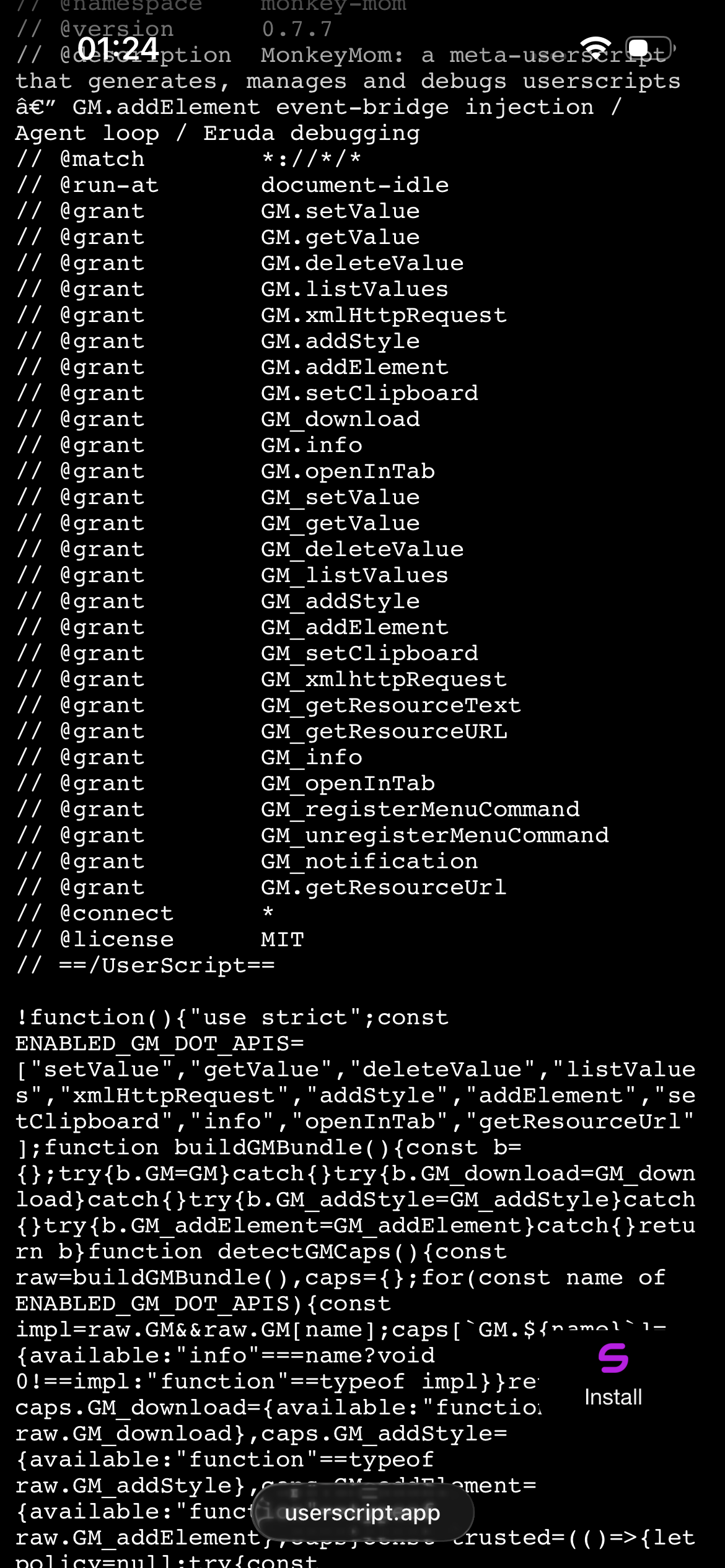
-
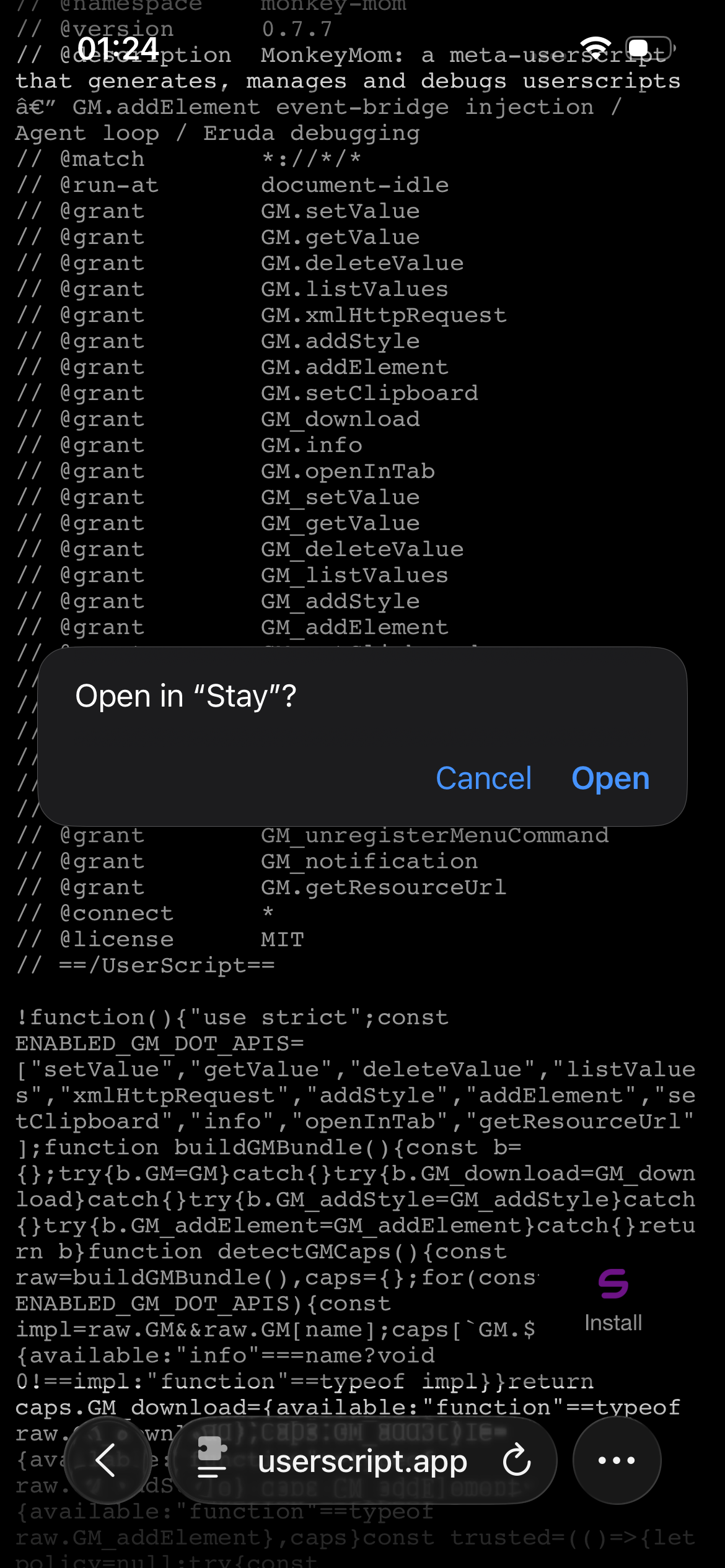
Tap Open in the confirmation prompt to open Stay:
-
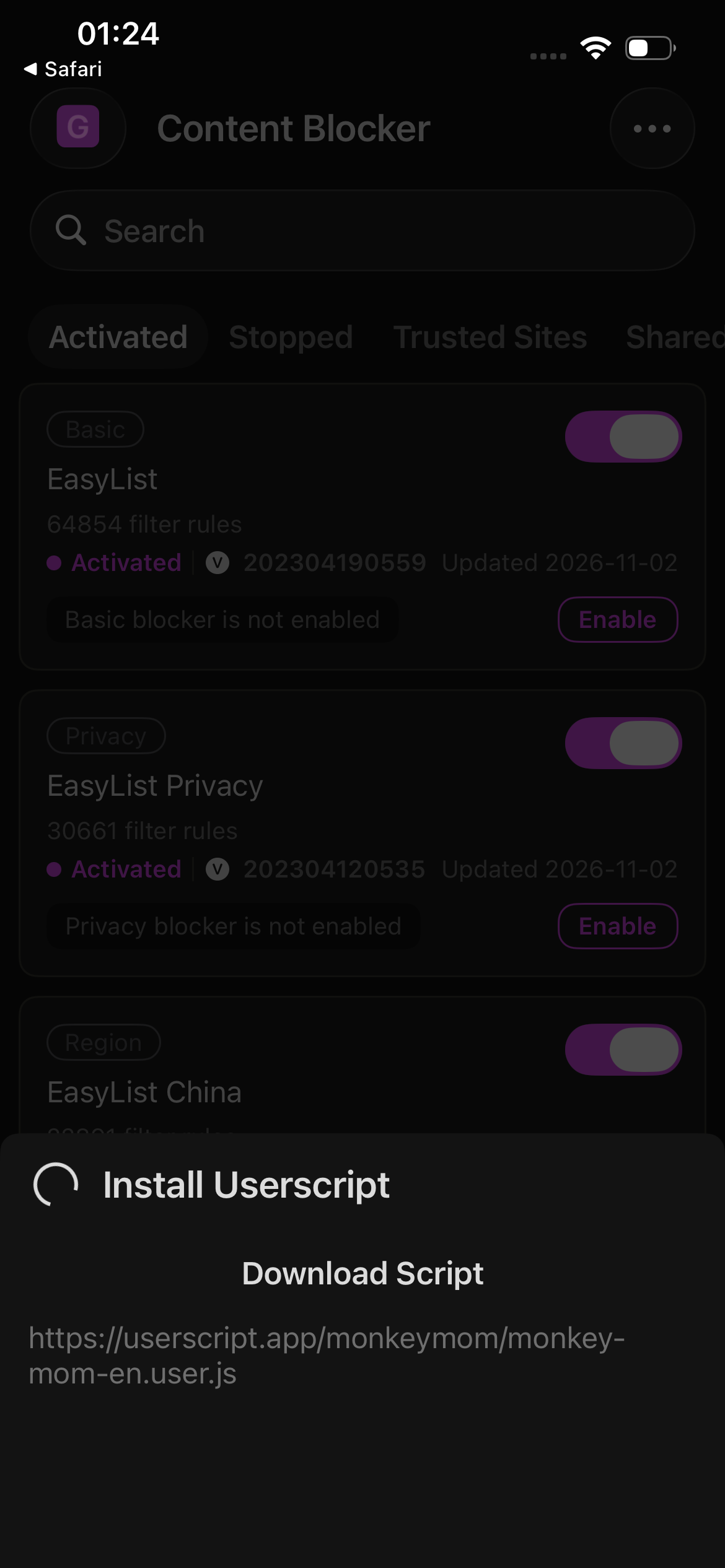
Stay opens its Install Userscript page and finishes the install. If the floating button doesn't appear, open the Stay app, choose Install script → From link, and paste the install URL above.
-
Check in Stay's Library that MonkeyMom is enabled, then open an ordinary web page and enter your API key.
Which route to pick
| Device | Recommended | Alternative |
|---|---|---|
| Windows | Edge / Chrome + Violentmonkey | — |
| Mac | Edge / Chrome + Violentmonkey | Safari + Stay for Safari |
| Android | Edge for Android + Violentmonkey | — |
| iPhone / iPad | Edge + Stay for Mobile | Safari + Stay for Safari |
Whichever route you take, your MonkeyMom API key stays in the manager's local storage. It is never included in exports and never sent to this site. Phone and desktop can share the same key.
Troubleshooting
The install button shows a page of code. No manager in the browser is intercepting .user.js links, or the manager is disabled — on Windows and Mac the most common miss is Allow user scripts not being ticked in the extension's Details. Revisit the manager step in your section, then tap the button again.
No floating ball on the page. Check that the manager is allowed to run on that site. Browser settings pages and extension stores cannot run scripts. Strict-CSP sites are essentially a Safari-only problem: Safari (WebKit) does not let extensions insert elements with isolated-world privileges past the page CSP. MonkeyMom reuses the page's existing nonce to mitigate this, but cannot fully solve it. If you hit one, try an ordinary web page.
Can I use Tampermonkey or ScriptCat? Yes, MonkeyMom's compatibility layer supports them, but Violentmonkey is the recommended manager for the most consistent behaviour.